Эта страница является
переводом страницы
IRidium studio 2019 Native Drivers. Перевод выполнен на 100%.
Drivers for professional systems
A driver is a subprogram in i3 pro or iRidium server, that provides interaction with deivces and systems in IP-net or via a physical interface
We'll describe here how i3 pro interacts with devices and systems to control and get data and what role is played by iRidium server in this process.
Principle of interaction of i3 pro and iRidium server with equipment
Equipment, a control system, a service is any external resource with which iRidium (i3 pro, iRidium server) must interact to send and get information.
Interaction means sending information:
- from i3 pro to equipment directly
- from i3 pro to iRidium server, and from iRidium server – to equipment
Very often there is a task to get feedback from equipment.
i3 pro can work on PC, smartphones, and tablets. iRidium server can work on PC or a phisical controller. PC and controller may have not only net interface but also phisical interfaces (RS232, etc.) to exchange data.
i3 pro / iRidium server can connect to an external resource that supports the same way of data exchange, as the i3 pro / iRidium server. Thus, i3 pro, launched on iPhone, can't send IR-command to a TV-set or connect to a controller that has only RS232 interface.
This problem is usually solved with the help of iRidium server, but sometimes additional converters, adapters are required, that convert data received via IP-net into IR signals or convert them from IP-net to RS232. Sush adapters are manufactured by Global Caché.
Drivers in iRidium pro
Driver - is a subprogramm inside i3 pro or iRidium server, that provides interaction with external resources (devices, services). Data can have different formats and address systems , depending on the transmission medium, a driver is responsible for forming and addressing data packages, as well as for processing incoming information.
A driver realizes a protocol of data transfer - a set of agreements that determine data exchage between programs. These agreements set a general method to send messages and process data when software and hardware connected with the help of an interface interact.
For example, iRidium driver for "KNX Router (KNXnet/IP) / Serial (UMC)" realizes KNXnet/IP protocol, that can work in IP-net or via RS232 sequencial port. You add a driver to i3 pro or iRidium server and select an interface via which it will work.
A driver can work in i3 pro as well as in , iRidium server if a device, where a driver works, has an interface to send data required for driver work.
Drivers on iRidium server
If a driver is on iRidium server, i3 pro interacts with devices via server. "Client-server" connection is done via a protected iRidium protocol, and "server- device" connection is done via a device protocol.
Connection via a server is preferrable for some automation systems, as not all systems support several connections semultaneously and the server solves this problem, sending data to all interface-clients.
Server allows not to update states of feedback channels of equipment at every i3 pro start, as iRidium server is on all the time and has the latest data about the state of the system.
Function of connection to server via internet is also important, it is realized with the help of "Cloud Gate" mode (safe remote connection without port forwarding or VPN, or something similar to DNS).
iRidium server has Virtual driver that does connect to real devices, it exchanges data between iRidium server and i3 pro. For i3 pro connection to iRidium server and Virtual variables look the same as commands and feedback channels of other drivers. But Virtual variables are processed only by iRidium server withing the logics set by the developer.
Connection between iRidium server and i3 pro can be set by creating Master project or synchronizing projects on iRidium server and i3 pro.
Current state of a driver and data, written in feedback channels, are availble in server web-interface.
Adding a driver
A driver can be added to i3 pro interface or to iRidium server:
- by importing a file with configuration of your equipment, by scanning the local network. The following automation systems are supported (see up to date list in iRidium studio):
- DuoTecno – scanning network
- HDL-BUS Pro – scanning network
- KNX (ETS, *.knxproj) – file import,a list of IP interfaces and group addresses is formed
- Modbus (*.csv) – file import in iRidium supported format, see documentation for Modbus. A list of registers is formed
- Crestron (Simpl, *.smw) – file import, a list of joins is formed
- iRidium JavaScript (iRidium studio, *.js) – file import, it alloes to add script from one project to another
- iRidium project (iRidium studio, *.irpz, *.sirpz) – file import, it allows to add drivers from one project to another
- Domintell - scanning network
- Velbus - scanning network
- AMX (TPDesign, *.TP4, *.TP5) is not diplayed in driver import, but TP4 project can be opened in the studio like *.irpz - file *.TP4 is automaticlly converted to i3 pro format.
- from the database, where a ;ist of different drivers are stored. The drivers can be used in a project. Commands and feedback channels must be formed manually.
- with the help of JavaScript. In this case a driver is not displayed in the driver tree, but when i3 pro is launched it works in a way determined by a developer. See. JS API
- by adding a widget module from the Modules library. Modules is a library od ready modules for i3 lite app (a module is a set cosisting of a driver and an interface). Appearance of modules can't be changed, but they do not require tweaking and work "from the box", right after they are added and set
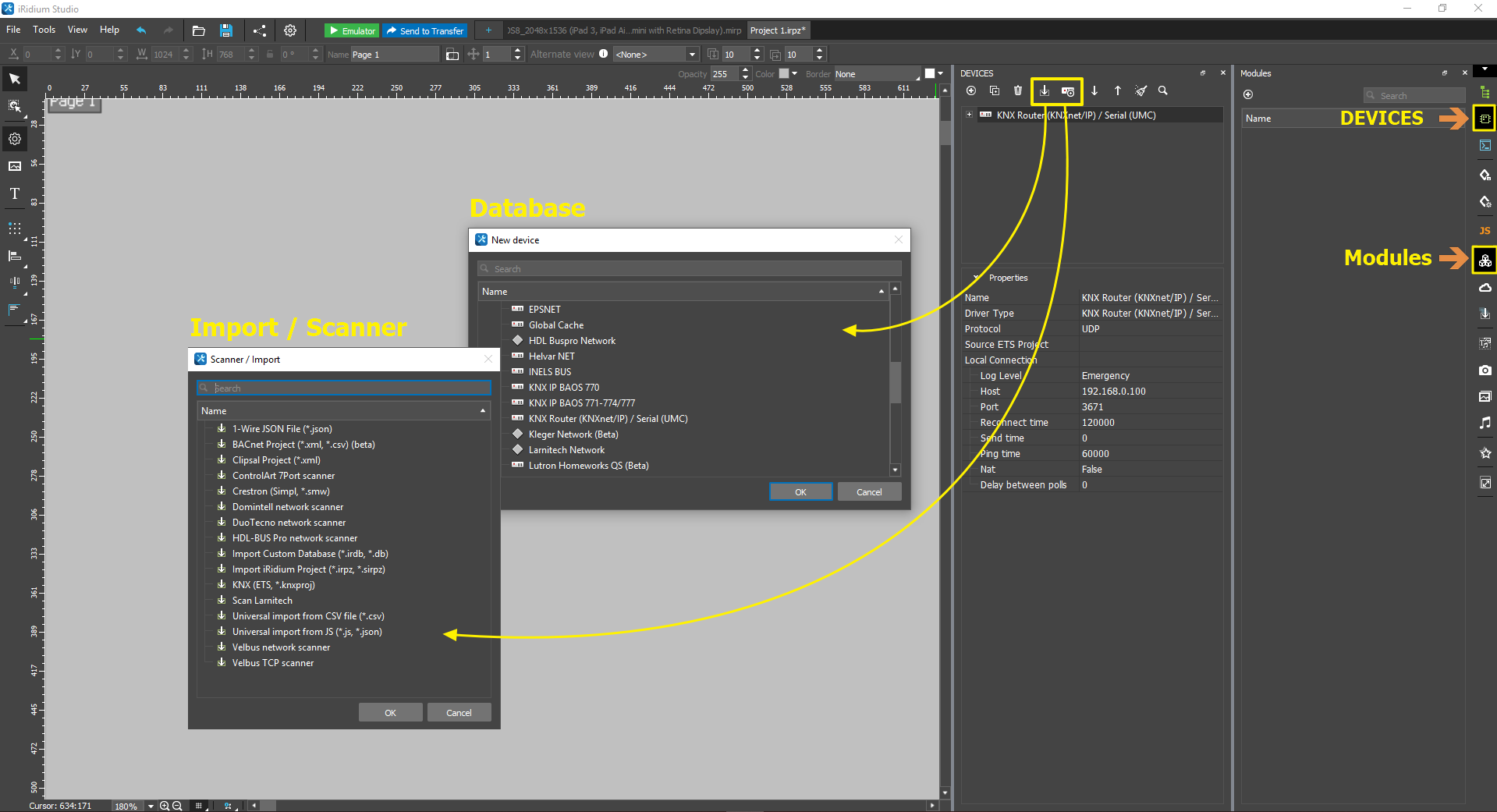
adding a driver to an interface for i3 pro
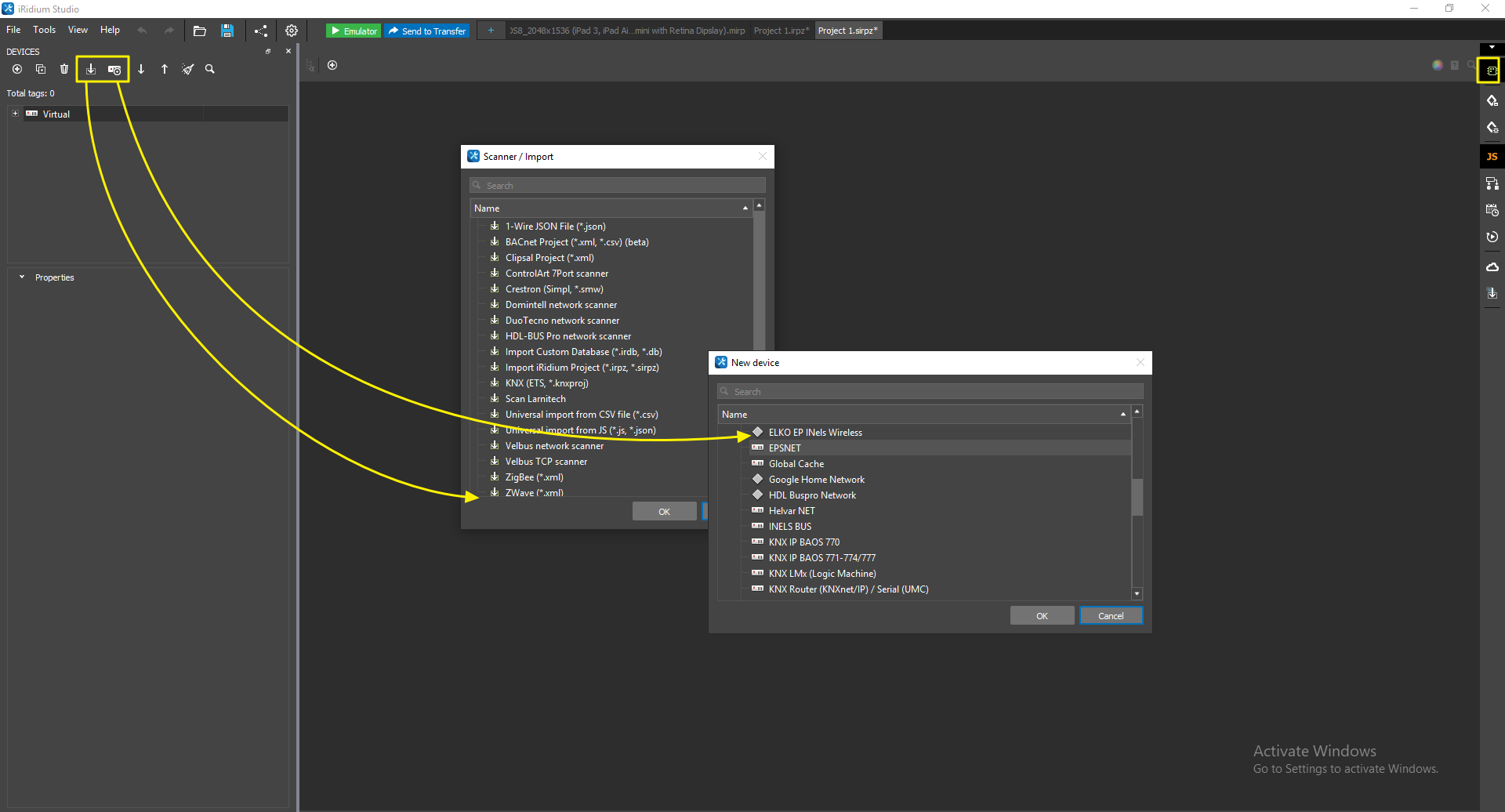
adding a driver to a configuration for iRidium server
Driver settings, commands and feedback channels
Depending on the realized protocol driver settings, parameters of commands and feedback channels are different. You can find information about a particular driver in the section with driver description.
General characteristics of a driver:
- Driver type (type), shows a protocol realized by the driver;
- Protocol (transport), shows what transport is used to exchange data (TCP, UDP, RS232, ...);
- Local Connection – group of data address parameters, required for information to reach a definite address of a multi-user network (for example, obligatory and main parameters parameters in IP-network are IP-address and connection port);
- Keep Alive(for TCP drivers) - interval to check TCP connection. If there is no answer to Keep Alive request, the driver will be forced to the turned off state. The parameter is developed fro correct display of on-line status when a client was turned off urgently\incorrectly. 0 - deactivation of the setting;
- Tags - the name used to find a driver or a group of drivers through the search bar.
Driver contents are a set of command addresses where values that will be sent to equipment are written, and a set of feedback channel addressed where a driver will save values received from equipment. Depending on the protocol, drivers have different addresses systems. Set commands and feedback channels allow to interact with equipment addresses comfortably:
- Commands are a list of device variables where commands are sent. For example, to control KNX relay with "1/0/1" address, 0 or 1 value must be written in the driver command with this address.
- Feedback channels are a list of variables to sort and store data received from equipment. For example, KNX relay returns 0 or 1 value when it is switched. In the driver this value is available as a feedback channel with "1/0/1" address. The value can be displayed in the interface.
- Tokens are feedback channels that inform about the connection status of a server with a device and contain important information about connection parameters (address, connection port, etc.)
You can find a detailed manual on setting a concrete driver here.
Tools to create your own drivers
A driver in iRidium realizes a protocol (rules) to exchange data with equipment on the basis of a transport - a definite means to exchange data (TCP, UDP, HTTP, Serial).
But if your system does not have a realized protocol, you can create it yourself. To do it, a driver is required that realizes only the transport part of the data exchange process, as for the protocol part (forming requests and processing answers), it is formed by you with the help of JavaScript.
See more about work with transports- drivers – AV & Custom Systems:
Control of Equipment
To control equipment it is required to set commands (Commands) and feedback channels (Feedbacks). To send a command, drag'n'drop it on a graphic item and enter a value to send. To display a feedback value drag'n'drop a feedback channel on a graphic item and choose how to output a value.
To assign commands and feedback channels you can select a graphic item and drag'n'drop a command or feedback on a required tab of the
Programming window. Drag'n'drop a command on Press, Release, Hold or End of hold tabs, drag'n'drop a feedback channel on the Relations tab.
Read more about work with graphic items in the "Types of graphic items" article.
Viewing relations with graphic items
There are several ways to learn which graphic items are related with commands and feedbacks:
- Used items window. This tab displays all relations of the highlighted command or feedback with graphic items. To open this window click right mouse button on a command / feedback and select the Show usage option.
- Programming tab. This tab displays all relations of the highlighted graphic item (read more here).
- Highlighting relations in the Devices tab. When you click on a graphic item, commands and feedbacks that are related with this item are highlighted with different colour in the Drivers window. If you click on a page or popup with graphic items, all commands and feedbacks that are related with these items located in this page / popup are highlighted with different color in the Devices tab.