Эта страница является
переводом страницы
Editor Server Tools. Перевод выполнен на 100%.
iRidium Studio contains tools for setting up commands and receiving feedback from controlled equipment. Setting up of connection with equipment is performed in the tab I/O and in the script editor.
iRidium Server projects
An iRidium Server project is a program which works on the server and provides connection of the server with automation equipment.
Communication of the server and control panels
Server components
-
Drivers - they are connected to equipment and store the list of variables which can be controlled. The drivers are related to the server channels
-
Server channels - the intermediate variables between control panels and driver channels. The server channels unite variables of all drivers in one space
-
Virtual variables - they store server data and results of JavaScript work which are not related to the real driver variables
-
Database - it keeps record of changes of server variables
-
JavaScript - it describes scenes, logic and schedules (intelligent features of the server). It enables modification of data when they go through the server
-
Web server - it enables connection of iRidium Server via the web-interface to see the state and settings. It enables work of REST API with the help of which third-party applications and systems can control server functions via НТТР
Control of the server
-
i3 pro - the iRidium client application which starts visualization of server control. It includes:
- the iRidium Server driver in i3 pro - this driver establishes connection with the server via TCP
- JavaScript in i3 pro - it enables creation of scenes which work on control panels (for example, control the graphic interface)
- the graphic interface in i3 pro - the visual interface to control automation equipment
-
Web-interface - the interface to control server settings which can be opened in the browser. It does not display the user visualization
-
Third-party applications - the applications and devices which can control the server by sending HTTP commands set up in accordance with the server REST API
Steps for setting up the server project depend on the automation tasks. That is why they can be different (some steps can be omitted).
The general thing is that the server connects to particular automation equipment. That is why the connection with equipment is set up first.
I/O. Communication with the equipment
In the simple case of server use it is required to connect to equipment from several control panels. Set up data transfer via the server providing work of several control panels
When completing this task we perform several actions:
- create a server project
- add the list of drivers you want to control in it
- set up commands and feedback channels for the drivers
- create a project for i3 pro on the basis of the server project на
Adding drivers
Create a new project for the server: File > New > New Server Project.... Open the I/O tab
information about setting up of each driver and its channels can be found in the section
Control of equipmentCreate a project for the server:
From the database
Drag a driver from Device Panel to the I/O > DRIVERS window:
Set up the driver: indicate Host, Port and other connection properties
Import from the configuration file
iRidium supports import from files:
- ETS Project (*.pr3, *.pr4, *.pr5, *.knxproj) - import of group addresses from ETS (KNX)
- Simpl project (*.smw) - import of Crestron joins
- Clipsal project (*.xml) - import of Clipsal groups
- iRidium Archive Project (*.irpz) – import of drivers from iridium projects
- iRidium Server Project (*.sirpz) – Import of the iRidium Server driver from iridium projects
- Modbus CSV Files (*.csv) - import of Modbus registers from the csv table
Device search in the local network
iRidium supports scanning of the local network to find equipment of a certain type. The scanning enables fast creation of the devices list and commands for them:
- HDL-BUS Pro Net (UDP) – equipment in the HDL-BUS Pro system
- Lutron Net (UDP) – equipment in the Lutron system
- DuoTecno (TCP) – equipment in the DuoTecno system
- Domintell (UDP) – equipment in the Domintell system
On the basis of the visualization project
If you have a project for the control panel (*.irpz) created in iRidium V.2 or V.3, you can form the project for the server automatically. As a result you get a project for the control panel which connects to the server and a project for the server which connects to equipment set up earlier in the visualization project. Such conversion is the fastest way to get the server solution.
Be attentive, unlike i3 pro iRidium server does not support:
- graphic interfaces,
- project tokens,
- most system tokens.
That's why referring to graphic items and tokens can lead to script malfunction. Correct the script manually: delete wrong referals, referals to project tokens can be substituted with referals to virtual channels and tags.
Driver and server variables
The I/O tab of the server project is visually divided in two parts: DRIVERS and IRIDIUM SERVER:
- in the
DRIVERS tab you can see settings for connection to automation equipment.
- in the
IRIDIUM SERVER tab you can see relations between the variables of automation equipment and the server variables (projection). With the help of server variables all equipment channels are united in one space of names. Control panels will refer to the server variables and those will send data to equipment.
The driver projection on the IRIDIUM SERVER variables consists of the following tabs:
-
Driver Tokens - the driver variables. They display the status of connection to equipment
-
Channels - the variables available for control
-
Tags - the variables from which you can receive feedback
By writing a value in the server channel, we activate the command to equipment. The same thing works for feedback - it will be sent from driver Feedback to the corresponding server tag.
Server variables can be written , read or modified with the help of JavaScript. The modification means intermediate transformation of data on the server - before sending commands to equipment or before sending feedback to control panels.
▼ Driver Tokens
Driver variables. They display the status of connection to equipment
- Online - the state of connection to the controlled system (Online/Offline = 1/0)
- Status - the status of connection to the system (Offline/Connecting/Online/Waiting = 0...3)
- Host - the domain name of the remote system
- HostPort - the port on the remote system to which i3 pro gets connected
- IP - the control panel IP-address
- HostIP - the IP-address of the remote system to which i3 pro is connected
- Port - the local client port through which the connection with the remote device is established
Driver tokens save information about connection of the server to the controlled equipment. They can be saved in the database and used for building graphs and outputting the log.
▼ Commands / Channels, Virtual Channels
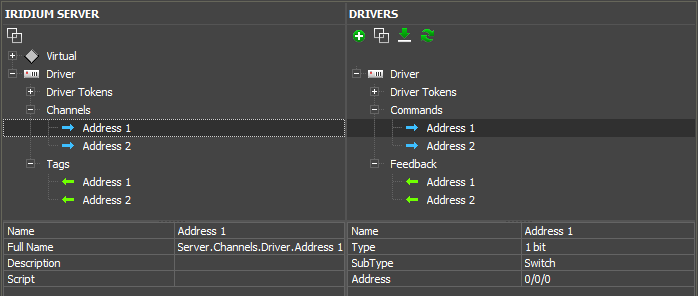
Commands / Channels - variables to control equipment.
Virtual Channels - virtual server variables available for control. They are not connected with the controlled equipment directly. You can create such variables manually and write results of application work in them: numbers, strings, arrays. Data for writing are formed in JavaScript on the server or from control panels.
Work with Virtual is identical to work with Project Tokens, the same rules and API functions are used.
Commands / Channels
Virtual Channels
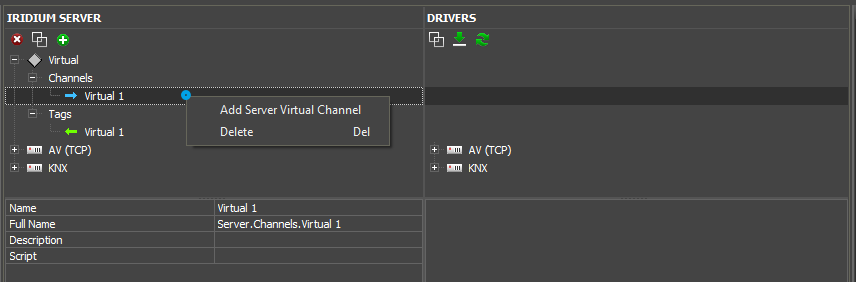
- Name - the channel short name
- Full Name - the full name of the channel. It is used for referring from JS on the server. It will be displayed in the panel project.
- Description - the channel description, optional
- Script Modifier - the script modifying function which enables intermediate transformation of values written in the variable before sending them to the driver channel or after receiving from control panels (or from the script).
▼ Feedbacks / Tags, Virtual Tags
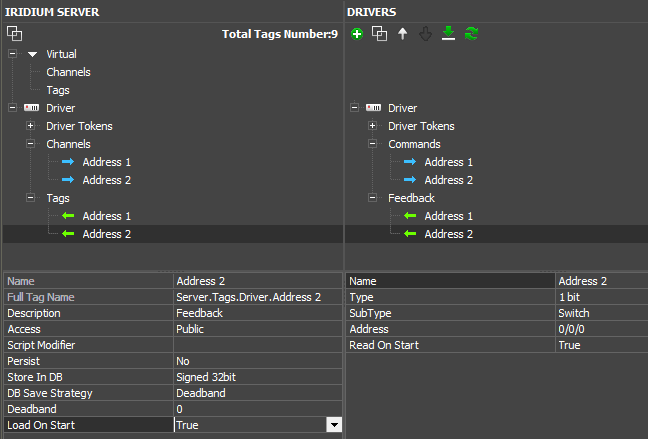
Feedbacks / Tags - variables from which you can receive feedback.
Virtual Tags - server virtual variables from which you can receive feedback. They are not connected with the controlled equipment directly.
Feedback / Tags
Virtual Tags

- Name - the short name
- Full Tag Name - the full name for referring from the script
- Description - the description (optional)
- Access - the variable type:
- Public - it can be saved from control panels,
- Private - it can be saved only from the server
- Script Modifier - to perform the JavaScript function every time the tag is activated - it enables modification of received data before sending them to control panels
- Persist - to return the last variable value in case of the server reboot
- Store In DB - to save all changes into the database
- Load on Start - takes the last value of a tag from a database when a server is started (the setting appears if a values is saved in the database)
Creation of panel projects
When all drivers in the server project are set up, you can create a project for your control panel - the visualization of server control.
The project is generated on the basis of the server one as it must contain information about the server variables.
▼ WAYS OF CREATING PANEL PROJECTS
There are several ways to add the iRidium Server driver in projects for control panels.
Fast creation of projects
Right-click on the server project and select "Create Panel Project"
You will get a panel project with an empty page and the iRidium Server driver with all server tags. You will be able to work with them as with commands and feedback channels - assign them to items for control and data display, process them with the help of iRidium Script.
When making changes in the server project you can synchronize it fast with the panel project. Select the iRidium Server driver and click
Sinc with Source.
The file of the server project with which the driver will synchronize can be substituted in
Source Project
Adding of iRidium Server in ready visualization projects
If you already created a visualization project and want to add connection to the server in it:
- add the iRidium Server driver from the database
- indicate the path to the *.sirpz project with which you want to synchronize your visualization project
- you will get the iRidium Server driver with the actual list of commands and feedback channels.
When the base for the visualization project is ready you can go to the section Visualization of iRidium Server control - it describes settings to control server variables.
If the server has to send data to control panels but also modify the data, launch scenes, save the database, etc. see the rest sections of the instruction manual:
Schedule
The Schedule section in the server project is a scheduler implemented as a list of events. The events can be started once or at specified intervals.
The scheduler events are used to run commands created in the Routine section (the list of routines). An event in the schedule can be repeated with the interval from 1 day to several years.
Press on the Schedule tab in the iRidium server project to open the window of events settings. You can add any number of events to the schedule:
- add an event
- delete theevent. All the routines where this event has been used as a condition will stop working
- change the event settings
Settings
- Name - the event name
- Description - the short description (optional)
- Start - the date and time of the event
- Finish - the date and time when the event ends. The "Specify the Date" tick is disabled by default. It means that the event ends in the same day when it starts. When you enable the tick, you can choose the day when the event ends.
- Repeat - If it is necessary to repeat the event, specify the interval. See the examples and description of the settings below
- End - when to stop the repetition of the event (if Repeat is on)
- Never - never to stop the repetition
- Date - on a specified date
Astronomical timer
An astronomical timer is meant to create schedules and routines that are connected with the sunrise and sunset. For example, a schedule is required that turns on outside light at sunset and turns it off at sunrise.
A simple photo relay can be used in this case, but it has a number of disadvantages:
- the photo sensor has to be taken care of (if it gets dirty, the light will be on all the time)
- if flare light appears, the light won't be turned on when required
- light can't be turned on before or after a certain light level
An astronomical timer does not have these disadvantages.
Here is an example, how an astronimical timer can be set.
Internent access is not required to work with astronomical timer.
Setting an astronomical timer
1 Create a server project or open a project you have.
2 Find the Config section adn enter your coordinates as a decimal fraction in the Latitude and Longitude fields and click Save.
3 Add equipment you will work with and set it.
4 Create a schedule for light in the Schedule section. Select Sunset as the start time and Sunrise of the next day as the end time.
5 Create routines in the Routine section:
Routine 1:
WHEN → Event start
THEN → send a value to a device channel for the device to turn on
Routine 2:
WHEN → Event finish
THEN → send a value to a device channel for the device to turn off
BUT ONLY IF → the device is on at the moment (Feedback == 1)
The setting is complete. The server calculates the time of sunrise and sunset depending on the location you entered.
Repeat Settings
Repeat - the interval of event repetition. Setting options:
- Never - do not repeat the event
- Every Day - to repeat every day at the specified time
- Every Week - to repeat on the same weekday when the event started. For example, each Monday
- Every 2 Weeks - to repeat on the same weekday when the event started but each 2 weeks. For example, every second Sunday
- Every Month - to repeat on the same date when the event started, every month. For example, on 23th of each month.
- Every Year - to repeat the same month and on the same day of the months when the event started, every year. For example, each January 1.
- Custom - to set the repetition by days, weeks, months, years, but with custom periodicity. For example, each 3 days, or every 2nd Monday of selected months.
- Repeat Settings: (only for Repeat: Custom)
- Periodicity - the periodicity of repetition
- By Days - to repeat every N day from the day of the event start. For example, every second day.
- Every: <N> Days - periodicity of repetition in days, from 1 to 365
- By Weeks - to repeat every N week on specified days from the event start. For example, Thursday of every 2d week
- Every: <N> Weeks - periodicity of repetition in weeks from 1 to 52
- On specified days of week - select days for event repetition
- By Months - to repeat every N month. Select the principle of repetition: on specified dates of the month /on specified days of the month. For example, each 23rd of every 2nd month. Or every 1st Monday of the month.
- Every: <N> Months - the periodicity of repetition in months from 1 to 12
- On specified dates of month - the repetition on specified dates of the month. You can select multiple dates
- On specified days of month - the repetition on specified days of the month. 1st Monday, 4nd Sunday, ...
- By Years -to repeat every N-th year
- Every: <N> Years - интервал повторения в годах
- On specified months - the months of the year when the event will be repeated. It will start on the start date of the event
- On specified days - to repeat the event on the specified weekday of but not on the date of a month. You have to set the tick "At specified Day". For example, the event can start on the 1 Monday of a month
Routine
Routine is a scene that automatically runs when a specific event occurs. The event may be receipt of data from equipment, or Event from the server schedule.
Settings
Click on the Routine tab in the iRidium server project to setup routines:
- to add a routine
- to remove the routine
- to change the settings of the routine
To add a routine:
- Name - the routine name
- Description - the short description (optional)
- WHEN - the condition that is being monitored by the routine. When the event is executed the commands defined in THEN tab are executed sequentially. There can be multiple conditions in the WHEN tab (works by OR condition). As a WHEN condition you can choose:
- Feedback - change of the driver channel
- Event - the beginning or the end of the schedule events
- THEN - all of the commands configured in the THEN tab will be executed sequentially, if the WHEN condition is executed
- BUT ONLY IF - excluding conditions. If the conditions that are configured in BUT ONLY IF tab not met the routine won't work. If there are a few conditions it means that all of them must be executed (by AND)
- Feedback - the condition when the driver channel is compared with the value
- Event - the condition when the schedule event runs or not
Setting up of the WHEN, THEN, BUT ONLY IF conditions:
Routines work on the basis of event logics: WHEN condition becomes active one time only at the moment when the condition changed its state from false to true. In the following true states the WHEN condition will not be active any more. Thus, the THEN order of actions is done only once after WHEN is activated.
If WHEN gets true value at the start of iRidium server , THEN actions are not done, as the previous false state of WHEN condition is not fixed - it's an obligatory condition of routine activation.
Scheduler in Routines
WHEN. To run routines, use the status of schedule events:
- Start - the event begins
- Finish - the event ended
BUT ONLY IF. As the excluding condition when running routines. The following states are used:
- In process - the event is happening now
- Not in process - the event is not happening now
Data modification on the server
Modification - change of received data before sending them as intended: to equipment or control panels.
The modification is performed with the help of the script modifying function which is set up in the properties of a server channel or tag (virtual variables are modified on the same basis):
- If the function modifies a server channel: the value received by the channel from a control panel will be recalculated in the script and then sent to the driver
- If the function modifies a server tag: the value received by the tag from a driver will be recalculated in the script and then sent to control panels.
Example: graphic items on a control panel regulate a variable in the range from 0 to 100. The server brings the values to 0...255 with the help of modifiers and then sends then to the driver (automation equipment):
The modifying function has to be created in the script editor and indicated in the variable properties, the string Script:
function modify_send (in_Type, in_Name, in_Value)
{
   in_Value *= 255/100;
   return in_Value;
}
function modify_receive (in_Type, in_Name, in_Value)
{
   in_Value *= 100/255;
   return in_Value;
}
The channel or tag which activated the function sends the arguments to it:
-
in_Type - the variable type, 0 - the channel, 1 - the feedback tag
-
in_Name - the full name of the command or tag
-
in_Value - the value of the command or tag
In this way we perform processing of data when they go through the server in two directions (from control panels to equipment and back).
the modified value (in_Value) is returned to the variable with the help of the command return in_Value;
it is not required to return the modified value - the action can be just performed once. Then the initial value received by the function will not be received by the destination but it will lead to the function execution.
Modified values of tags and channels are displayed in the server web-interface, that is:
- tag values appear in the server web-interface as a result of work of Script Modifier function,
- values, set in the web-interface by the "Set" command, are sent to the entance of Script Modifier function before it is sent to a channel of a phisical device.
Examples of modifiers
Modification of Driver Tokens
Driver Tokens display the status of connection to automation equipment - they are available for reading only.
/*
    The Online token of any driver can return only values 1 = Online and 0 = Offline.
    Substitute 1 to the current time and the phrase "Connection established"; 0 to the time and "Connection closed"
    Return the modification result to those that called the function
*/
function onlineModify (in_Type, in_Name, in_Value)
{
   if (in_Value == 1)
   {
      in_Value = IR.GetVariable("System.Time.24")+" Connection established";
      return in_Value;
   } else
   {
      in_Value = IR.GetVariable("System.Time.24")+" Connection closed";
      return in_Value;
   }
}
To select the variable which will be processed by the modifying function, indicate the function name in the variable settings:
The modification result (not the real variable value) comes to the server variable and then from there to control panels.
Modification of Driver Channels & Tags
Driver channels and tags are related with the server variables which have to be modified. You cannot assign the modifier to a driver command - you can assign it only to the server channel related to the command.
When executing a command, it has to send a value (sometimes the value is not required - then an empty string is sent). This value is modified before sending to equipment:
/*
    The channel receives the value in the range 0-100
    Reduce the value to the range 0-255, round it and sent to equipment
*/
function rangeModify (in_Type, in_Name, in_Value)
{
      in_Value *= 255/100;
      return in_Value.toFixed(0);
}
To select the channel which the modifying function will process, indicate the function name in the variable settings:
Driver Tags
/*
    The channel receives values in the range 0-255
    Reduce the value to the range 0-100, round it and return to the feedback channel
*/
function rangeModifyBack (in_Type, in_Name, in_Value)
{
      in_Value *= 100/255;
      return in_Value.toFixed(0);
}
To select the tag which the modifying function will process, indicate the function name in the variable settings:
The tag will give only the modification result, not the initial value.
Modification of Virtual Channels & Tags
Server virtual variables look like server channels or tags on the side of control panels. You can send a value in the variable. On the basis of this value you can form a command and send it to automation equipment:
/*
    The command to the DVD player looks as follows: "VOLUME XX", ХХ - it is volume from 00 to 100
    The volume can consist of two or three symbols, i.e. 00, 01, 02, ... 100 (ASCII)
    Get value 0-100 from the control panel (from a standard Level Item), form the command and send it
*/
var driver = IR.GetDevice("AV & Custom Systems (TCP)");
function volume (in_Type, in_Name, in_Value)
{
      if (in_Value < 10)
      {
            in_Value = "0"+in_Value;
            driver.Send(["VOLUME "+in_Value+"\r\n"]);
      } else
      {
            driver.Send(["VOLUME "+in_Value+"\r\n"]);
      }
}
To select the variable which should be processed, indicate the function name in the variable settings:
Virtual Tags
Server virtual tags look like feedback channels on control panels. You can write a value from the script in them and then process the value with the modifying function. The final value will be available for reading from control panels.
/*
    Virtual tags do not receive values directly from equipment
    That is why we write the value from the script in the tag when it is required
*/
IR.SetVariable("Server.Tags.Virtual 1", 100)
/*
    process the value with the help of the modifying function
*/
function value (in_Type, in_Name, in_Value)
{
    in_Value = "brightness: "+in_Value+"%";
    return in_Value; // brightness: 100%
}
To select the variable which should be processed, indicate the function name in the variable settings:
Writing and reading variables
Server variables - Driver Tokens, Channels, Tags, Virtual Channels and Virtual Tags. Their state can be changed and requested from control panels and from scripts on the server.
Writing and reading is performed with the help of the JavaScript commands:
-
IR.GetVariable(name)
IR.SetVariable(name, value)
For control panels the server variables look like driver commands and channels. That is why when working with them use the iRidium API methods for drivers
Writing values in variables
1. Copy the full name of the variable from the tab IRIDIUM SERVER
2. Use the IR.SetVariable method to write the value in the variable:
Syntax
IR.SetVariable("Server.Path.Name", value)
| Server.Path.Name
|
Server.Channels.Virtual 1
|
type: string
the full name of the server variable
|
| value
|
100
|
type: string, number, boolean
the value for writing in the server variable
|
| успешность
|
true
|
type: boolean
if the writing was successful
|
Sample
IR.AddListener(IR.EVENT_START, 0, function()
{
    IR.SetVariable("Server.Channels.Virtual 1", 100);
});
the method can be applied to server channels and tags
Reading variable values
1. Copy the full name of the variable from the tab IRIDIUM SERVER
2. Use the IR.GetVariable method to read the data from the variable:
Syntax
IR.GetVariable("Server.Path.Name")
| Server.Path.Name
|
Server.Channels.Virtual 1
|
type: string
the full name of the server variable
|
| value
|
100
|
type: string, number, boolean
the value in the server variable
|
Sample
IR.AddListener(IR.EVENT_START, 0, function()
{
    IR.GetVariable("Server.Channels.Virtual 1");
});
the method can be applied to server channels and tags
Use of Intellectual Gateway Function for Data Exchange between Virtual Channel and Tag
The virtual command Virtual Channel (Server.Channels.Virtual 1) is not initially associated with the virtual feedback tag Virtual Tag (Server.Tags.Virtual 1), so you can change the value of the virtual variable on the server "but it will not be returned on the panel as the feedback value".
To return the value sent from i3 pro to the server to i3 pro , you need to create a script function (Script Modifier). This function will write the value sent from i3 pro in the virtual feedback tag of the server. That is the change that will be seen on the control panel.
download the example
To set up the data transfer from the virtual command to the tag:
1 Create a new project for iRidium server
2 Create a virtual channel (command) and a tag (feedback channel) with with the same name. For example, "Virtual 1"
3 Open the script editor (the JS button on the toolbar) and create a new script file. Add a modifier function in it:
function virtual_to_virtual (in_Type, in_Name, in_Value)
{
   var namepart = in_Name.split(".");
   IR.SetVariable("Server.Tags." + in_Name, in_Value);
   return in_Value;
}
4 Return to the virtual command "Virtual 1" (Server.Channels.Virtual 1), select the function "'virtual_to_virtual"' in the drop-down list of the Script Modifier parameter.
5 That is it. When writing values in Server.Channels.Virtual 1, this value will be automatically sent to Server.Tags.Virtual 1 and can be displayed as the feedback channel on the control panel.
Use of Intellectual Gateway Function for Data Exchange between Drivers
The task of the direct data transferring is to transfer data between unconnected automation systems.
Modifying functions enable execution of data transferring.
download the example
Example: when changing a register in the Modbus controller, send its new value to the KNX group address. you can modify the value before sending (for example, multiply it by 100):
function gate_to_modbus (in_Type, in_Name, in_Value)
{
    IR.SetVariable("Server.Channels.Modbus TCP 2.Channel 12", in_Value*100);
    return in_Value;
}
The address_1 function monitors changes of the feedback channel of the Modbus driver. Select it in the field Script of the Modbus server tag.
If you give the same names to variables which you want to connect, it is enough to create only one modifying function and link it with all the feedbacks that should be transferred to another driver:
function gate_to_modbus (in_Type, in_Name, in_Value)
{
    var namepart = in_Name.split(".");
    IR.SetVariable("Server.Channels.Modbus TCP 2." + namepart[1], in_Value);
    return in_Value;
}
Activation of scenes from control panels
the main way to perform periodic activity is usin of the Schedules and Scenarios. But if this functionality is insufficient, you can use the scripts.
A scene can be activated when sending the value from the control panel to the virtual server channel. In order to do that subscribe to the channel changes in the server scripts:
Example of a scene:
IR.SetGlobalListener(IR.EVENT_GLOBAL_TAG_CHANGE, function (name, value)
{
   if (name == "Server.Channels.Scenario 1" && value ==1)
   {
      IR.SetVariable("Server.Channels.KNX Router (KNXnet/IP).Address 1", 100);
      IR.SetVariable("Server.Channels.KNX Router (KNXnet/IP).Address 2", 75);
      IR.SetVariable("Server.Channels.KNX Router (KNXnet/IP).Address 3", 0);
   }
});
IR.SubscribeTagChange("Server.Channels.Scenario 1");
To perform such a scene, send value 1 from the control panel to the server channel "Server.Channels.Scenario 1".
you can create one global listener in your project (IR.SetGlobalListener()). All operations have to be performed inside one listener. The number of subscriptions is not limited.
Periodic actions
the main way to perform periodic activity is usin of the Schedules and Scenarios. But if this functionality is insufficient, you can use the scripts.
Example 1: the simplest timer doesn't have a settings on client side. We are creating the list of needed timers on server, it is not possible to see the list of this timers on Client side or set the running time
// if your another JS files includes  "IR.SetGlobalListener()"
// you have to add the code inside of previous IR.SetGlobalListener() and delete the listener from this file!
// if you are not sure that you are able to do it yourself please contact to support@iridiummobile.ru
IR.SetGlobalListener(IR.EVENT_GLOBAL_TAG_CHANGE, function (name, value)
{
   if (name == "System.Time.Minutes")
   {
      // SET UP PERIODICAL ACTIONS:
      // start hour, start minute, duration of process (ms), channel full name, start value, stop value
      // if you don't want to stop process, add "no" instead of stop value
      check_timer (10, 45, 60000, "Server.Channels.KNX Router (KNXnet/IP).Pump 1", 1, 0);             // timer 1
      check_timer (14, 30, 480000, "Server.Channels.KNX Router (KNXnet/IP).Pump 2", 1, "no");         // timer 2
                                                                                                      // you can add more
   }

   // do not edit the other part, you need only to add the needed timers in above
   function check_timer (hours, minutes, duration, channel, start_value, stop_value)
   {
      if (IR.GetVariable("System.Time.Hour") == hours && IR.GetVariable("System.Time.Minutes") == minutes)
      {
         function stop ()
         {
            IR.GetServer().Set(channel, stop_value);
            IR.Log("process at "+hours+":"+minutes+" stopped");
         }
         IR.GetServer().Set(channel, start_value);
         IR.Log("process at "+hours+":"+minutes+" started");
         if (stop_value != "no")
         {
            IR.SetTimeout(duration, stop);
         }
      }
   }
});

IR.SubscribeTagChange("System.Time.Minutes");
Example 2: the script on the server check time every minute. If the time is the same as the time of the alarm preset for a particular time and minute and if the alarm is active, then the script will perform a sequence of actions in the automation system (you can turn on the light and start to play music in the room).
To set up the activation time, you need to send the values from the control panel in the server variables.
For the control panels to receive information about the time the alarm is set up to and its state, you are required to write the alarm settings in the virtual server tags.
Example 3: it is based on the us of the functions IR.SetInterval() and IR.ClearInterval(): to show a reminder every 5 seconds until the event is finished:
do not consider these projects to be a ready solution - they just demonstrate the communication between the server and the client application
Requests to the database
The SQL database is formed on iRidium Server at creation of a server project.
If you work with several projects and change them on the server, the file of the system database is created in each project. You can also create your own custom database:
- System database
- writing in the database is performed only via the settings of server variables in iRidium Studio
- it can be read with the help of special SQL requests
- it cannot be edited or deleted
- User database
- writing in the database is performed only via JavaScript
- it can be read with the help of special SQL requests
- it can be edited or deleted with the help of JavaScript
Where to find the database:
You can find the path to the database file via the server web-interface, the tab System > Database.
How to store the data in the system database:
You can write only server variables - Driver Channel, Driver Tags, Virtual Channel, Virual Tag - in the database. That is why only the server variables have the settings for saving. If you want to save a driver channel, select it projection on the server variables - you will see the settings for saving in the database:
- Name - the short name
- Full Tag Name - the full name for referring from the script
- Description - the description (optional)
- Access - the variable type:
- Public - it can be saved from control panels,
- Private - it can be saved only from the server
- Script Modifier - to perform the JavaScript function every time the tag is activated - it enables modification of received data before sending them to control panels
- Persist - to return the last variable value in case of the server reload
- Store In DB - to save all changes into the database
- None - no store
- Signed 32bit - save as integer
- Float 64bit - save as float
- String UTF8 - save as string
- DB Save Strategy - event on which variable recorded in database:
- Deadband - store in DB if the value changed more than for selected accuracy of changing. For example, if Deadband: 0.5, changing of the variable by 0.3 will not be stored in DB
- Interval - store in DB with selected periodicity
- Load On Start - to restore the variable value from the database in case the server is rebooted (unlike Persist = Yes that restores the last value saved in the database but not the latest value).
The saving can be set up in two ways:
- with a particular frequency
- when the variable changes to the value which is more than the indicated one - the whole number or fraction.
The first way is convenient to use for the variables which change gradually and are quite inert, fro example, temperature and air humidity. The second way is ideal for the variables which change seldom but considerably. For example, you can write when the light is turned on and off in the database. At that, the writing of changes will form less records in the database and will not miss an event.
Access to the server databases is performed with the help of special SQL requests. The requests enable you to receive data by preset conditions.
User databases:
You can create an editable database with the help of JavaScript. Data writing, reading and editing in user databases are performed with the help of SQL requests.
Access to user databases via JavaScript:
The guide provides instructions for work with the system and user databases.
The handbook contains the list of all methods for working with databases.
Building graphs
To display graphs of changes in variables, iRidium saves values of the variables in the SQL database which is stored on iRidium Server.
When you need to build a graph of changes in a variable, the i3 pro application forms a request to the database for the particular period of time and displays the result in the graph.
When the saving in the database is set up, you can display your variable in i3 pro as a graph.
Synchronization of control panels and the server
It is recommended to create a visualization interface when you have a ready server project: connection with automation equipment is set up, virtual tags and scripts for them on the server side are formed. Import of the server project will allow you to get the full set of controlled variables for your visualization project fast. All you have to do then is to assign the variables to graphic items.
See How to create projects for control panels
Upload of projects on the server
Upload of server projects (*.sirpz) on the server is performed similarly to the upload of projects in i3 pro, i.e. with the help of the iRidium Transfer application on your PC.
Transfer finds all servers running in one IP subnetwork and displays them in its interface. You send your project and license to iRidium Server with the help of Transfer.
See How to launch projects on iRidium Server